
Introduction
Mastering account settings in Windows 11 can enhance your system’s security and privacy. Switching from a Microsoft account to a local account provides greater control over personal data, as it prevents automatic cloud-synchronization, offering an added privacy layer. This guide will assist you in seamlessly transitioning to a local account.
Understanding Windows 11 User Accounts
Windows 11 features two main types of accounts: Microsoft and local accounts. A Microsoft account is linked to Microsoft’s cloud, enabling synced experiences across devices but comes with privacy tradeoffs since it shares data with Microsoft. A local account keeps your credentials offline, enhancing privacy but limiting certain cloud features.
Preparing for the Switch to a Local Account
Before transitioning, it’s important to:
-
Backup data: Ensure your files and settings are backed up, as syncing across devices will no longer be automatic post-switch.
-
Check for Updates: Verify that Windows 11 is up-to-date to reduce compatibility issues during the transition.
These preparatory steps will ease the transition, allowing you to smoothly switch without losing critical data or preferences.
Step-by-Step Guide to Changing Your Account
Here’s how to transition your account:
-
Open Settings: Access the Start menu and click on the gear icon for Settings or type ‘Settings’ in the Start menu search bar.
-
Navigate to Accounts: In the Settings panel, click on ‘Accounts’ to manage your account settings.
-
Access Your Info: Within Accounts, click ‘Your info’. You’ll find information on your current account.
-
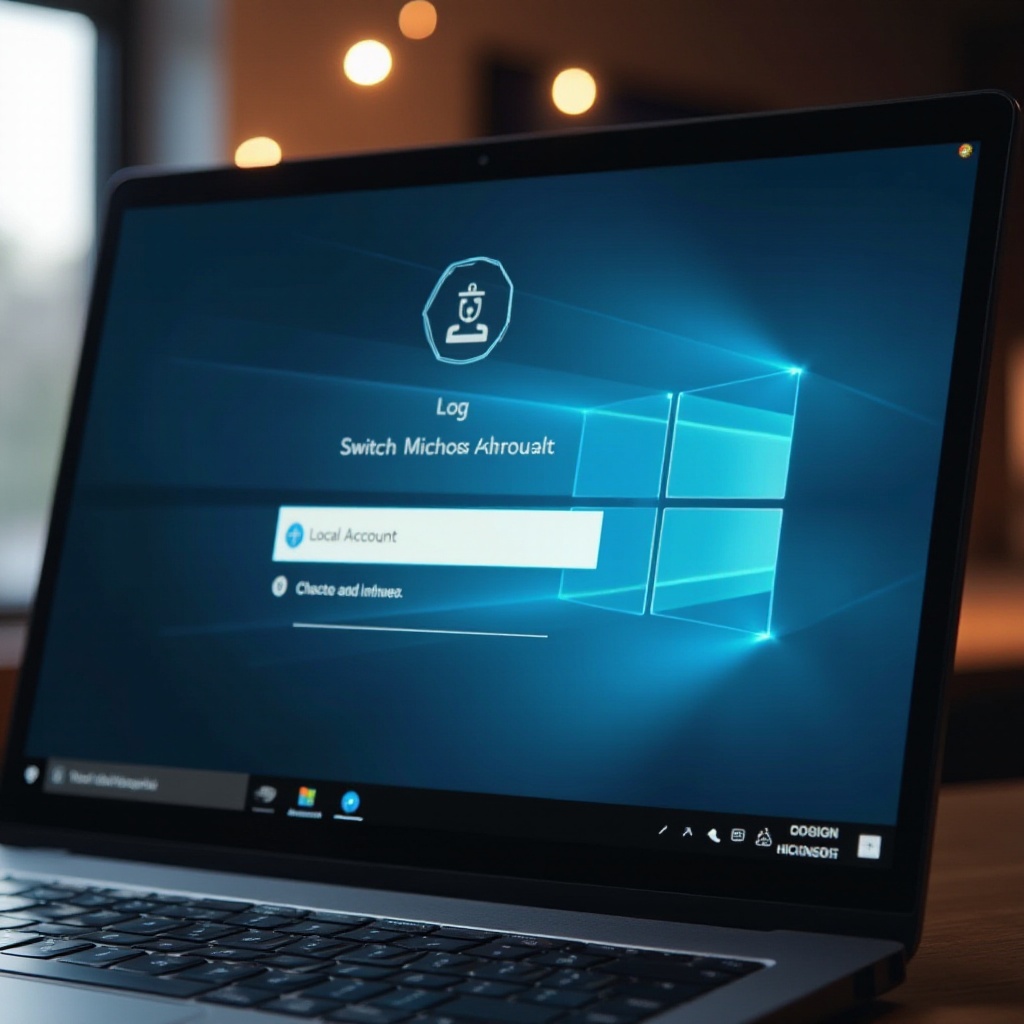
Switch to Local Account: Click ‘Sign in with a local account instead’. Enter your current password to verify.
-
Set Up Your Local Account: Create a new username, and password with a hint, then click ‘Next’.
-
Finalize the Switch: Select ‘Sign out and finish’, then log in using your new credentials to complete the process.
Upon completion, these steps redirect your login to local credentials, reducing dependencies on Microsoft’s cloud services.
Verifying and Personalizing Your Local Account
After setting up your local account, verify its functionality and make it yours:
-
Verify Access: Log in using your new information to ensure it functions correctly.
-
Personalize Settings: Adjust your profile by setting preferences for wallpapers, themes, and other personal options.
This personalization ensures your new account is tailored to your specific needs while retaining all essential functionalities.
Securing Your Local Account
Even with a local account, security remains vital:
-
Use Strong Passwords: Select a password using a mix of numbers, symbols, and varied letter cases to shield your account.
-
Enable Additional Security Features: Utilize Windows Hello for biometric security options like fingerprint or facial recognition.
These practices ensure your device remains protected from unauthorized access, further enhancing your experience.
Conclusion
Switching to a local account in Windows 11 affords you greater privacy and personalization. While some conveniences of a Microsoft account are forfeited, the control gained over personal data makes the transition worthwhile. Achieve improved privacy and enjoy a customizable user experience by making the switch today.
Frequently Asked Questions
How do I revert back to a Microsoft account if needed?
To revert, go to ‘Settings’ > ‘Accounts’, and select ‘Sign in with a Microsoft account instead’, then follow the prompts.
Will changing to a local account affect installed software?
No, switching to a local account does not impact the software installed on your computer; applications and files remain intact.
Are there any limitations using a local account in Windows 11?
Yes, some cloud features like OneDrive sync are limited, but enhanced privacy and control are key gains with a local account.