
Introduction
Experiencing issues with your iPad not appearing in Finder can disrupt your productivity. This comprehensive guide is designed to help you understand and resolve this connectivity issue with straightforward and advanced solutions.
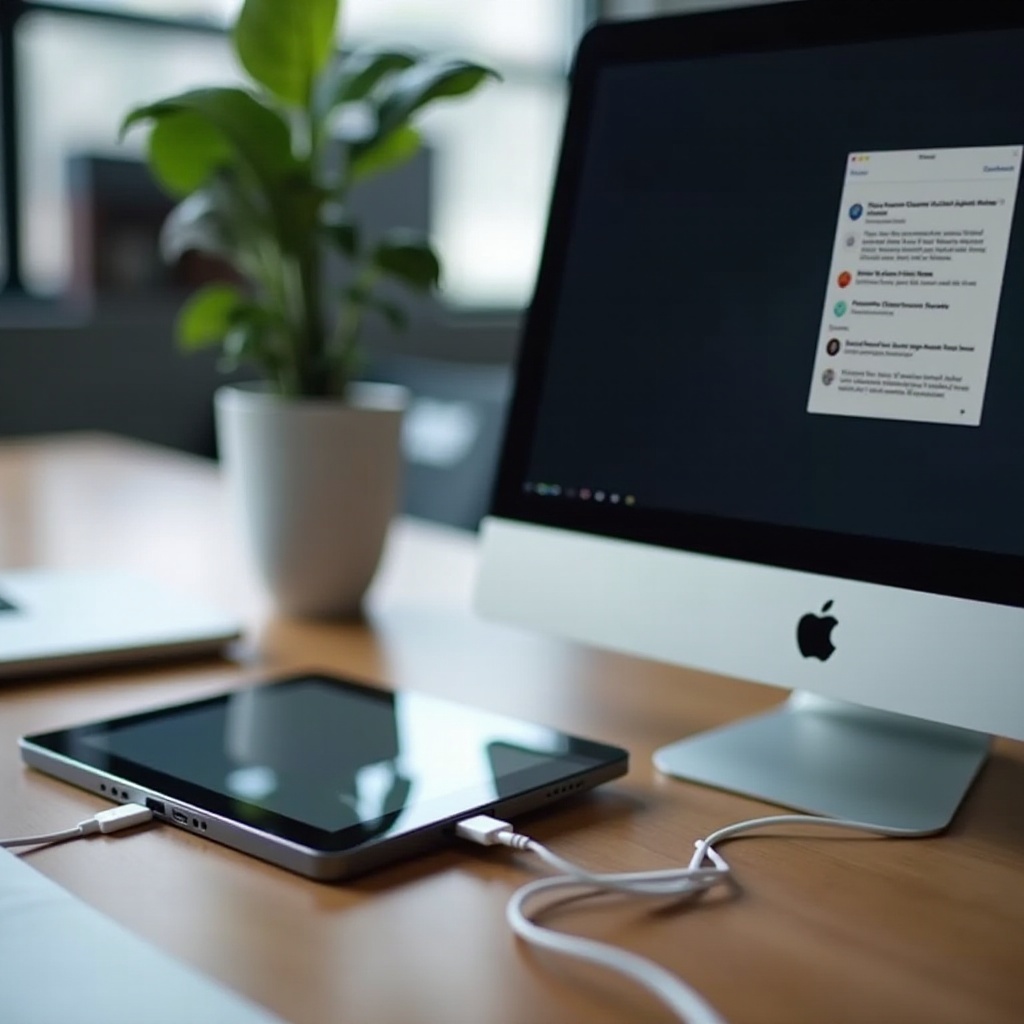
Understanding the Basics of Connection
Before troubleshooting, it’s crucial to grasp how your iPad usually connects to a Mac. This information provides a foundation for addressing more complex issues that might arise.
-
Types of Connections: USB and Wireless
Devices typically connect via USB cables, which require efficient cables and ports, or wirelessly, which depends on both gadgets sharing the same network. -
macOS and iOS Compatibility Requirements
Regular updates to your macOS and iOS are essential for compatibility. An outdated operating system often causes connection issues.
This foundational knowledge sets the stage for tackling specific problems that might prevent your iPad from being detected by Finder.
Initial Troubleshooting Steps
Begin with fundamental checks to rule out simple issues. These steps are quick to perform and can often resolve the problem rapidly.
-
Inspecting Cables and Ports
Check the integrity of your USB cable and cleanliness of the ports. You may find success by switching to a different port. -
Ensuring iPad is Unlocked and Trusted
Your iPad must be unlocked to show up in Finder and prompts to trust the computer should be acknowledged to facilitate connection.
Addressing these common issues can often resolve the problem. If these steps don’t work, proceed to more advanced solutions.
Advanced Solutions for Persistent Issues
If the problem persists after initial checks, delve into more sophisticated solutions that tackle deeper system or software-related issues.
-
How to Update macOS and iOS
Regular updates are vital. Access settings on both devices to ensure they are up to date, often rectifying unknown bugs affecting connectivity. -
Restarting Devices: A Simple Yet Effective Fix
Both your Mac and iPad may benefit from a restart, a simple method for eliminating temporary system glitches. -
Resetting Location and Privacy Settings
On your iPad, go to Settings > General > Reset, then select ‘Reset Location & Privacy’. This can resolve conflicts in privacy settings that disrupt connectivity.
These more advanced steps should assist in overcoming stubborn issues and restoring iPad visibility in Finder.
Exploring Alternative Methods
If direct connections continually fail, other methods exist that can circumvent these troubles effectively.
-
Using iCloud for Backups and Transfers
Configure iCloud on both devices as it provides a smooth platform for backing up and transferring files. -
Third-Party Software Recommendations
Reliable third-party applications might offer better connectivity solutions. User reviews and credible endorsements can guide you in selecting the right software.
These alternative approaches offer additional avenues for connectivity, broadening options when Finder encounters issues.
Conclusion
Resolving the issue of your iPad not showing up in Finder requires strategic troubleshooting, starting with simple steps and advancing to more complicated methods when necessary. Continuous difficulties may necessitate contacting Apple Support.
This complete approach ensures a thorough resolution, restoring smooth functionality between your devices.
Frequently Asked Questions
Why does my iPad require trusting my computer?
Trusting a computer allows secure data sharing between your iPad and Mac.
Can I use Finder if my iOS version is outdated?
Updating iOS and macOS ensures better device compatibility, so it’s best to update.
What are alternative ways to transfer files if Finder fails?
Consider using AirDrop, iCloud, or reputable third-party applications for file transfer.