
Introduction
Fitbit devices rank among the most popular gadgets for tracking your health and fitness metrics. However, there are occasions when disconnecting your Fitbit from your phone becomes necessary. Whether it be for resolving technical glitches, preparing for upgrading to a new device, or taking a break from constant alerts, a proper disconnection process is key. This guide aims to assist you in disconnecting without the risk of losing important data, maintaining your flexibility with ease.
Understanding Fitbit and Smartphone Connectivity
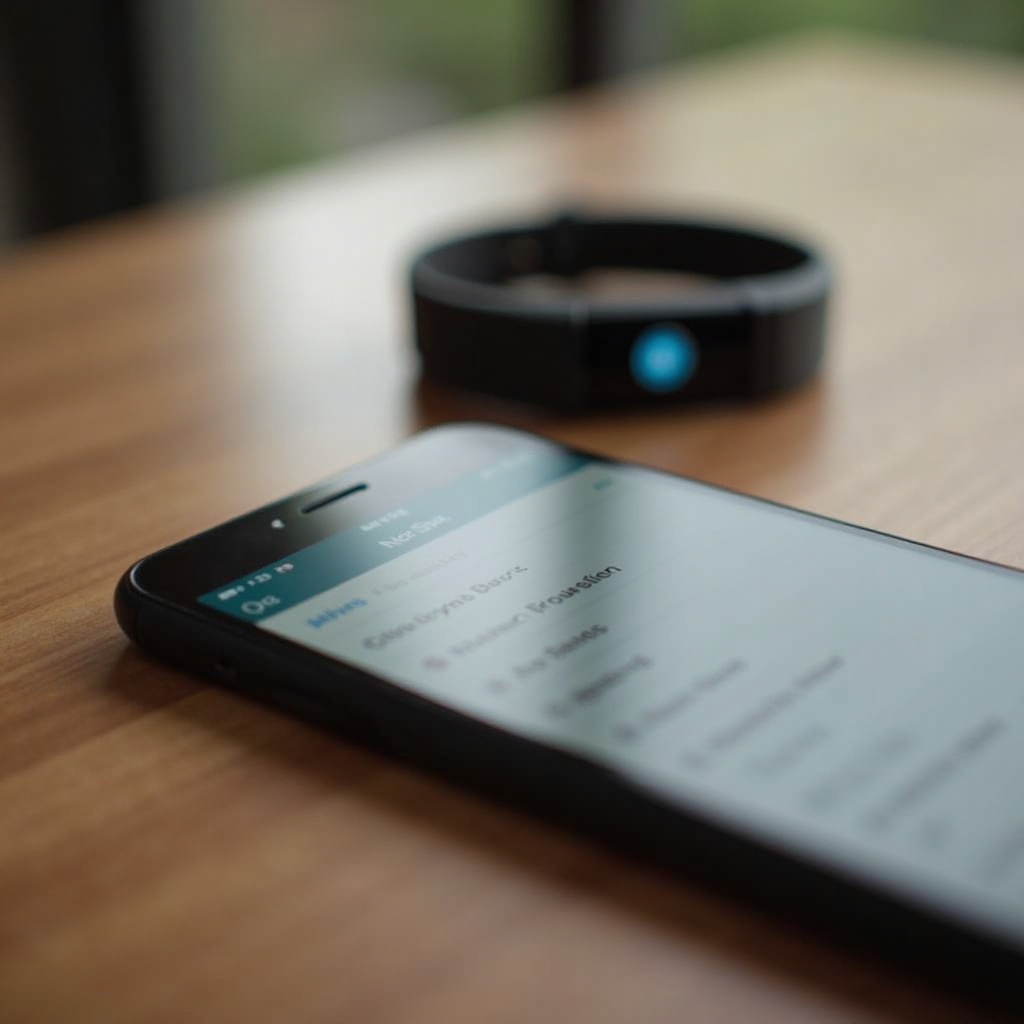
The link between your Fitbit and your smartphone is established largely through Bluetooth. This connection allows for seamless syncing of your health data, offering insights via the app on your smartphone. It’s a vital communication line that updates you in real-time, covering everything from workout statistics to notifications.
Temporarily disconnecting this connection can be beneficial when facing sync issues or transitioning between devices. It’ll allow you to pause interactions without compromising your long-term data habits. Let’s delve into the method of disconnecting your Fitbit wisely.
Step-by-Step Guide to Disconnecting Fitbit from Your Phone
Preparing Your Device for Disconnection
Prior to disconnection, it’s prudent to back up your data. Here’s how to ensure your information is preserved:
- Launch the Fitbit app on your device.
- Check that your Fitbit has recently synced with the app, so all your latest data is captured.
- Confirm the app is updated to the latest version for optimal performance.
How to Disconnect Fitbit Using the Fitbit App on Android
For Android devices, follow these steps to sever the connection:
- Open the Fitbit app on your phone.
- Navigate to the device section and select the Fitbit device you wish to disconnect.
- Scroll and find ‘Remove Device’.
- Confirm when prompted.
This action will disconnect your Fitbit from your Android device.
How to Disconnect Fitbit Using the Fitbit App on iOS
Apple users can disconnect their Fitbit using these steps:
- Start the Fitbit app on your iPhone.
- Tap your profile icon at the top-left corner.
- Choose the device you plan to disconnect.
- Tap ‘Remove Device’ and confirm through the prompts.
Your Fitbit will now no longer be connected to your iOS device.
Disconnecting Fitbit via Bluetooth Settings
As an alternative, disconnect via your phone’s Bluetooth settings:
- Access the ‘Settings’ on your smartphone.
- Enter ‘Bluetooth’ to view paired devices.
- Locate your Fitbit and select it.
- Choose ‘Forget Device’ to complete the disconnection.
This ensures that the Bluetooth connection is entirely severed.
Troubleshooting Common Disconnection Issues
Disconnecting doesn’t always go off without a hitch. Here’s how to handle potential problems:
Fitbit Not Disconnecting Easily
If your Fitbit doesn’t disconnect with ease, try toggling your phone’s Bluetooth off and back on. If that fails, restart both the phone and the Fitbit, then attempt disconnection again.
Resolving Sync Problems After Disconnection
Post-disconnection sync issues can occur when reconnecting:
- Ensure both the Fitbit and app are updated to their latest versions.
- Restart your smartphone and the Fitbit device.
- Reconnect by enabling Bluetooth and following the setup instructions in the app.
Managing Fitbit Without Constant Connection
Even disconnected, your Fitbit remains a valuable tool. You can utilize its offline functions by:
- Tracking daily activities, heart rate, and sleep, all without continuous connection.
- Periodically syncing the device to your app for current data storage and updates.
Tips for Enhancing Your Smartwatch Experience
To optimize your Fitbit use post-disconnection, consider:
- Customizing settings to match your preferences for offline activities.
- Knowing how to efficiently restore connections for when you choose to reconnect. The app will guide you through this process when you choose to pair devices again.
Conclusion
Disconnecting your Fitbit from your phone can be done easily with the appropriate steps. This flexibility is useful for transitions and troubleshooting, all while ensuring data preservation. Remember, whether you’re fixing a tech issue or getting ready for a new device, knowing how to manage your Fitbit connection enhances control.
Frequently Asked Questions
Can I use my Fitbit without connecting it to a phone?
Yes, you can use your Fitbit to track activities and store data locally. Sync periodically to upload data to your account.
What happens to my data if I disconnect my Fitbit?
Your Fitbit stores data until it can sync again. Regular sync prevents data loss over extended periods.
How can I reconnect my Fitbit to my phone after disconnection?
To reconnect, enable Bluetooth, open the app, and follow the pairing instructions to re-establish the connection.